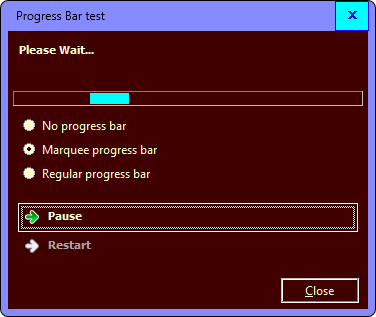
Tip
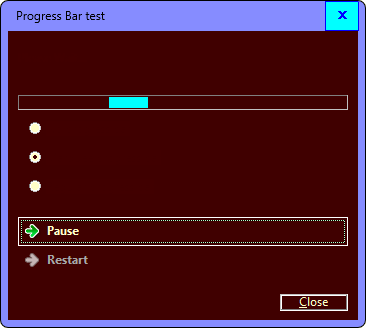
The image above is from the example application.
At the Releases page of the project repository you can download it as executable binaries as well.

public bool ForceCompatibilityMode { get; set; }Public Property ForceCompatibilityMode As Boolean
Get
Setpublic:
property bool ForceCompatibilityMode {
bool get ();
void set (bool value);
}member ForceCompatibilityMode : bool with get, setCompatibility mode is automatically used in the following cases:
When this property is set to , the following improvements can be observed:
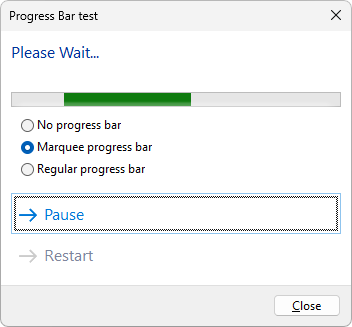
The following image illustrates native rendering on Windows 11:
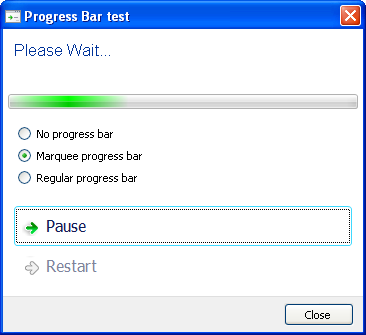
The same dialog on Windows XP, using compatible rendering (no matter what the value of this property is):
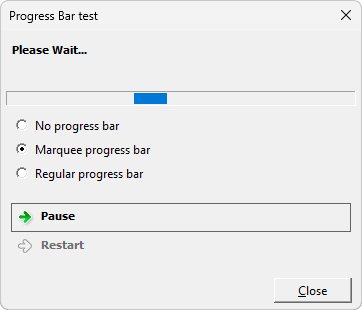
The compatible rendering is automatically applied also when visual styles are not enabled by the Application.EnableVisualStyles method. Note that attempting to use the System.Windows.Forms.TaskDialog (available when targeting .NET 5.0+) would throw an exception in such case. The following image is still the same TaskDialog as above when visual styles are disabled on Windows 11:
You might want to set this property to even when the native dialog would always work, because the native rendering has some issues in certain cases. For example, in high contrast mode it accidentally mixes Window and Control colors for some visual elements, which does not become apparent until you use a theme where Window and Control background/foreground colors are the inverse of each other:
Whereas in forced compatible mode every control picks their background/foreground colors correctly: