TaskDialog Class
Represents a task dialog window that is able to display regular buttons, Vista-like command links,
radio buttons and a progress bar. Can work in compatibility mode so the dialog can be used even with Windows XP or when visual styles are not available.
Namespace: KGySoft.WinForms.ComponentsAssembly: KGySoft.WinForms (in KGySoft.WinForms.dll) Version: 5.0.1
public sealed class TaskDialog : IWin32Window,
	IDisposable
Public NotInheritable Class TaskDialog
	Implements IWin32Window, IDisposable
public ref class TaskDialog sealed : IWin32Window,
	IDisposable
[<SealedAttribute>]
type TaskDialog =
    class
        interface IWin32Window
        interface IDisposable
    end
- Inheritance
- Object TaskDialog
- Implements
- IDisposable, IWin32Window
.NET 5 also introduced task dialogs, so when targeting .NET 5 or later, referencing
TaskDialog,
TaskDialogControl,
TaskDialogButton and
TaskDialogRadioButton button classes may require to use fully qualified names or aliases
like
using TaskDialog = KGySoft.WinForms.Components.TaskDialog; to avoid ambiguity with the recently added WinForms classes.
Please also note that unlike the KGy SOFT
TaskDialog,
System.Windows.Forms.TaskDialog cannot be used on Windows XP, on Linux/Mono, or when visual styles are not enabled.
But you might want to choose the KGy SOFT version even when running on Windows Vista or later with visual styles enabled, because it offers additional features
like custom images on the buttons and command links. If you set ForceCompatibilityMode to , then always the alternative implementation
is used, allowing some small improvements to the native version such as tool tips for regular buttons and radio buttons, more detailed info when copying the
content to the clipboard by Ctrl+C, fixing possible color issues in high contrast mode, etc.
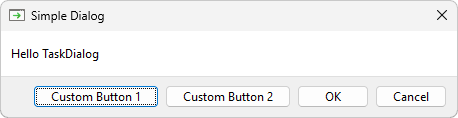
In the simplest case the TaskDialog can offer something similar to a MessageBox. In addition to predefined standard buttons you can add buttons with custom texts, too:
using System.Diagnostics;
using System.Windows.Forms;
using KGySoft.WinForms.Components;

// These aliases are needed if you target .NET 5.0+
using TaskDialog = KGySoft.WinForms.Components.TaskDialog;
using TaskDialogButton = KGySoft.WinForms.Components.TaskDialogButton; // if you use custom buttons
using TaskDialogRadioButton = KGySoft.WinForms.Components.TaskDialogRadioButton; // if you use radio buttons

void ShowSimpleTaskDialog(IWin32Window? owner = null)
{
    using var taskDialog = new TaskDialog
    {
        Caption = "Simple Dialog",
        Message = "Hello TaskDialog",
        StandardButtons = TaskDialogStandardButtons.OK | TaskDialogStandardButtons.Cancel,
        Buttons = { new TaskDialogButton("Custom Button 1"), new TaskDialogButton("Custom Button 2") },
    };

    taskDialog.Show(owner);

    // The selected standard button. Cancel, if you closed the dialog, or Custom if you pressed a custom button.
    Debug.WriteLine($"Dialog Result: {taskDialog.DialogResult}");

    // The selected custom button index. -1, if you closed the dialog or pressed a standard button.
    Debug.WriteLine($"Selected Custom Button: {taskDialog.SelectedButtonIndex}");
}

Application.EnableVisualStyles(); // tip: comment this out to see how it works without visual styles
Application.SetCompatibleTextRenderingDefault(false);
ShowSimpleTaskDialog();
The example above appears like this:
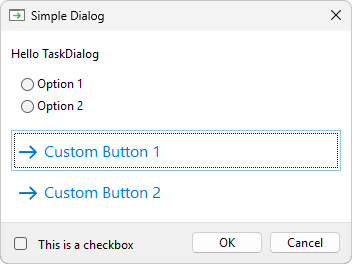
A task dialog can also offer choices by radio buttons, show a verification text on a checkbox,
and the custom buttons can be displayed as command links:
// the updated body of the ShowSimpleTaskDialog method above:
using var taskDialog = new TaskDialog
{
    Caption = "Simple Dialog",
    Message = "Hello TaskDialog",
    StandardButtons = TaskDialogStandardButtons.OK | TaskDialogStandardButtons.Cancel,
    Buttons = { new TaskDialogButton("Custom Button 1"), new TaskDialogButton("Custom Button 2") },

    // update:
    RadioButtons = { new TaskDialogRadioButton("Option 1"), new TaskDialogRadioButton("Option 2") },
    CheckBoxText = "This is a checkbox",
    Options = TaskDialogOptions.UseCommandLinks // affects the appearance of Buttons
};

taskDialog.Show(owner);

Debug.WriteLine($"Dialog Result: {taskDialog.DialogResult}");
Debug.WriteLine($"Selected Custom Button: {taskDialog.SelectedButtonIndex}");
Debug.WriteLine($"Selected Radio Button: {taskDialog.SelectedRadioButtonIndex}");
Debug.WriteLine($"Checkbox is checked: {taskDialog.CheckBoxChecked}");

// Alternative way to get every result in a single line:
TaskDialogResult standardButton = taskDialog.Show(owner, out int customButton, out int radioButton, out bool isChecked);
The updated example is starting to look like a typical task dialog:
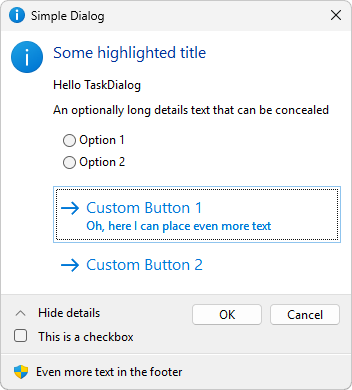
And there are quite a few more text elements you can set, as well as a couple of icons. Update the previous example as follows:
// updated initialization:
using var taskDialog = new TaskDialog
{
    Caption = "Simple Dialog",
    Message = "Hello TaskDialog",
    StandardButtons = TaskDialogStandardButtons.OK | TaskDialogStandardButtons.Cancel,
    Buttons = { new TaskDialogButton("Custom Button 1"), new TaskDialogButton("Custom Button 2") },
    RadioButtons = { new TaskDialogRadioButton("Option 1"), new TaskDialogRadioButton("Option 2") },
    CheckBoxText = "This is a checkbox",
    // Options = TaskDialogOptions.UseCommandLinks,

    // update:
    Options = TaskDialogOptions.UseCommandLinks | TaskDialogOptions.DetailsExpanded,
    MainInstruction = "Some highlighted title",
    DetailsText = "An optionally long details text that can be concealed",
    ShowDetailsText = "Show details",
    HideDetailsText = "Hide details",
    FooterText = "Even more text in the footer",
    Icon = TaskDialogStandardIcon.Information,
    FooterIcon = TaskDialogStandardIcon.SecurityShield,
};
taskDialog.Buttons[0].Description = "Oh, and here I can place even more text";
Our not-so-simple-anymore dialog now looks like this:
Though it contains a lot of elements, the latest example above is still a simple dialog in terms of the quite static content (not considering the collapsible details text),
meaning that the dialog closes as soon as one of the buttons is pressed. Actually you subscribe the Click event
of the custom buttons, which prevents the dialog from closing by default (unless you set the Handled property to ),
which allows you to dynamically change almost everything while dialog is open, including all texts, the Enabled state of the
custom buttons and radio buttons, and even the Options property. Additionally, the task dialog supports displaying a progress bar
and using a timer, which enables a sort of further dynamic actions, as illustrated in the following image:
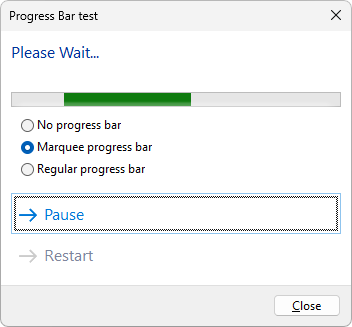
The image above is from the
example application, which contains numerous dynamic task dialog examples.
At the
Releases page of the project repository you can download it as executable binaries as well.
See also the Examples section of the ForceCompatibilityMode property for more image examples.
| TaskDialog |
Creates a new instance of TaskDialog class.
|
| Buttons |
Gets a TaskDialogControlCollectionT containing TaskDialogButton elements,
representing the custom buttons of this TaskDialog.
|
| Caption |
Gets or sets the caption of the task dialog. If caption is , the filename of the executable program is displayed.
|
| CheckBoxChecked |
Gets or sets whether the verification check box is checked. This property is ignored when CheckBoxText is empty.
Default value: .
|
| CheckBoxText |
Gets or sets the text of the verification checkbox of the TaskDialog.
The checkbox will be visible when this property is not empty when the dialog is shown.
|
| CustomFooterIcon |
Gets or sets a custom Icon as the footer icon for this TaskDialog.
Setting this property clears FooterIcon and vice versa.
|
| CustomIcon |
Gets or sets a custom Icon as the main icon for this TaskDialog.
Setting this property clears Icon and vice versa.
|
| DefaultStandardButton |
Gets or sets the default standard button. When Buttons are not empty and one of them is specified as default button
by IsDefault, then this property is ignored.
If neither standard nor custom buttons are specified as default, the first button will be the default one.
|
| DetailsText |
Gets or sets the details text. The expando button with ShowDetailsText or HideDetailsText
will be visible only when this property is not empty.
|
| DialogResult | When read, gets the last result of a closed TaskDialog (if the dialog was closed by one of the StandardButtons). When set and there is an opened TaskDialog, forces to close the dialog with the specified result. |
| FooterIcon |
Gets or sets one of the standard icons as the footer icon for this TaskDialog.
Setting this property clears CustomFooterIcon and vice versa.
Default value: None.
|
| FooterText |
Gets or sets the footer text.
|
| ForceCompatibilityMode |
Gets or sets whether the TaskDialog is to be forced to operate in compatibility mode
even if the current operating system supports native task dialogs.
|
| Handle |
Gets the native Win32 handle of the dialog.
|
| HideDetailsText |
Gets or sets the text of the expando button in expanded state. The expando button is visible only when DetailsText is not empty.
|
| Icon |
Gets or sets one of the standard icons as the main icon for this TaskDialog.
Setting this property clears CustomIcon and vice versa.
Default value: None.
|
| IsInCompatibilityMode |
Gets whether the TaskDialog is displayed in compatibility mode.
When the dialog is not displayed, returns .
|
| MainInstruction |
Gets or sets the main instruction text.
|
| Message |
Gets or sets the message text.
|
| Options |
Gets or sets the options of the TaskDialog.
|
| ProgressBarMarqueeAnimationSpeed |
Gets or sets the current animation speed value of the progress bar.
This property is used only when ProgressBarStyle is Marquee.
Zero value stops the animation.
Default value: 20.
|
| ProgressBarMaximum |
Gets or sets the maximum value of the progress bar.
This property is used only when ProgressBarStyle is Regular.
Default value: 100.
|
| ProgressBarMinimum |
Gets or sets the minimum value of the progress bar.
This property is used only when ProgressBarStyle is Regular.
Default value: 0.
|
| ProgressBarState |
Gets or sets the state of the progress bar.
Default value: Normal.
|
| ProgressBarStyle |
Gets or sets the style of the progress bar.
Default value: None.
|
| ProgressBarValue |
Gets or sets the current value of the progress bar.
This property is used only when ProgressBarStyle is Regular.
Default value: 0.
|
| RadioButtons |
Gets a TaskDialogControlCollectionT containing TaskDialogRadioButton elements,
representing the radio buttons of this TaskDialog.
|
| SelectedButtonIndex |
After the dialog is closed, gets the index of the clicked custom button defined in the Buttons collection that closed the TaskDialog.
If the TaskDialog has been closed either programmatically or by a standard button, or is not closed yet, this property returns -1.
|
| SelectedRadioButtonIndex |
After the dialog is closed, gets the index of the selected radio button defined in the RadioButtons collection.
If no radio button was selected, this property returns -1.
|
| ShowDetailsText |
Gets or sets the text of the expando button is collapsed state. The expando button is visible only when DetailsText is not empty.
|
| StandardButtons |
Gets or sets the standard buttons of this TaskDialog.
If neither standard nor custom buttons (see Buttons) are specified, the task dialog will have an OK button by default.
|
| Width |
Gets or sets the width of the TaskDialog in dialog units (1 DLU is about 2 pixels, but may vary based on the default dialog font).
The dialog is always at least 100 DLU wide. Zero value means that size is auto-calculated.
Re-assigning zero value adjusts the automatic width of the dialog on demand.
Default value: 0.
|
| Close |
Forces to close the TaskDialog. This causes that DialogResult will be Close
even if there was no Close button on the dialog.
|
| Dispose | Performs application-defined tasks associated with freeing, releasing, or resetting unmanaged resources. |
| Finalize | Allows an object to try to free resources and perform other cleanup operations before it is reclaimed by garbage collection.
(Overrides ObjectFinalize) |
| Show |
Shows the TaskDialog as a non-modal window, using the current configuration.
|
| Show(IntPtr) |
Shows the TaskDialog using the current configuration.
|
| Show(IWin32Window) |
Shows the TaskDialog using the current configuration.
|
| Show(IntPtr, Int32, Int32, Boolean) |
Shows the TaskDialog using the current configuration.
|
| Show(IWin32Window, Int32, Int32, Boolean) |
Shows the TaskDialog using the current configuration.
|